
Computer monitor buying guide
From compact desktop monitors to large gaming computer monitors, there’s a screen for every setup. Our extensive guide will help you compare sizes, resolutions and useful features.
Shop computer monitors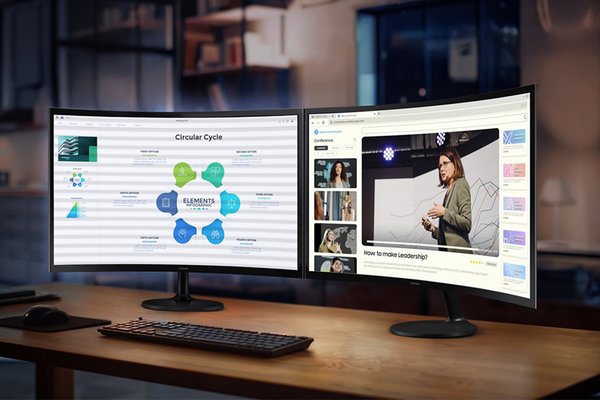&poi={$this.metadata.pointOfInterest.x},{$this.metadata.pointOfInterest.y},{$this.metadata.pointOfInterest.w},{$this.metadata.pointOfInterest.h}&scaleFit={$sfcenter}&sm=aspect&aspect=3:2&sfcenter=center&sfpoi=poi&qlt=50&fmt=auto&noiser=0&fmt.jpeg.interlaced=true&fmt.jp2.qlt=40&)
By Steven Smith | Last edited: October 2026
Computer monitor features to look for before you buy
Whether you need a desktop monitor for work, a gaming screen or a second monitor for multitasking, the right choice starts with how you plan to use it.
Look at the monitor screen size, resolution, panel type, refresh rate and available connections. It’s also worth comparing computer monitor dimensions, stand adjustability and computer monitor cable types to make sure everything works with your desk and computer. We’ll break down the important features so you can find the right screen without getting lost in the specifications.
Exploring different types of computer monitors
Choosing a computer monitor depends on how you plan to use it the most. Whether it is for everyday work, video calls or fast-paced gaming, each requires different screen features. Below are some details to look out for.
Large monitors for home office
A larger display or higher resolution gives you more room for spreadsheets, creative apps and side-by-side windows, making multi-tasking easier. For comfortable viewing, choose a monitor stand with height, tilt and swivel adjustments. If you plan to use a separate monitor arm, check the product information for compatible mounting details.
Slider Grid
- Save £10.00£59.00Was
£69.00Free collection or delivery from £4.95 - Lowest Price£109.00Free collection or delivery
- Save £70.00£129.00Was
£199.00Free collection or delivery








Understanding computer monitor size and screen resolution
Computer monitor dimensions and screen resolution are closely connected, but they describe different things.
- Screen size: This is the diagonal measurement of the monitor screen, usually shown in inches.
- Screen resolution: Tells you the number of pixels used to create the picture.
- Aspect ratio: Describes the screen’s width in relation to its height.
Remember: A large-screen monitor gives you a bigger picture, but not always a sharper one. When choosing a computer monitor, consider the screen size, resolution and viewing distance to get the right level of detail for your setup.
What monitor size should you choose
Before choosing a computer monitor size, measure the width and depth of your desk. Screen size is measured diagonally and doesn’t include the monitor’s frame, stand or base, so check the full computer monitor dimensions to make sure it fits your setup well. Check out some options below:
Comparing monitor sizes
| Monitor size | Works well for | Points to consider |
|---|---|---|
Compact desks, study spaces and gaming setups. | Easily fits into limited spaces. | |
Home working, multitasking and general gaming. | Check the full monitor dimensions and stand footprint. | |
Detailed work, films, gaming and larger workspaces. | May need a deeper desk and more viewing distance for comfortable use. | |
Side-by-side windows, wide timelines and compatible games. | Check your desk width, device compatibility and software support. |
Different computer monitor resolutions
Monitor resolution shows how many horizontal and vertical pixels make up the picture. More pixels can provide sharper detail and extra on-screen workspace.
Remember: A higher resolution can make text and images appear sharper, but it also demands more from your computer’s hardware, particularly when gaming. Check that your hardware, software and games support the resolution to get the best performance and picture quality.
Comparing monitor resolutions
| Monitor resolution | Pixel dimensions | What it means for you |
|---|---|---|
1920 × 1080 | A popular choice for everyday computing and streaming. | |
2560 × 1440 | More detail makes it useful for multitasking and gaming. | |
3840 × 2160 | Highly detailed picture that's best for editing and movies. | |
3440 × 1440 | Wider display allows for multi-tasking and playing supported games. | |
5120 x 2880 | Extremely high pixel density and colour accuracy suited for video editing and graphic work. |
What is a monitor aspect ratio
A computer monitor aspect ratio compares the width of the screen with its height. Most standard monitors have a widescreen display, while ultrawide monitors offer extra horizontal space for viewing multiple applications side by side or working across wide editing timelines. Some applications, videos and games may not support every monitor screen ratio. This can leave empty space at the sides of the picture or require you to choose a different display setting.
Different monitor panel types
The computer monitor panel type can affect viewing angles, contrast, colour accuracy, response time and price. Each panel technology has different strengths, so the right choice depends on whether you’ll use your monitor screen for everyday tasks, gaming or creative work.
Different panel types to consider
| Panel type | Best suited to | Key benefits | Points to consider |
|---|---|---|---|
Office work, creative applications and everyday gaming. | Wide viewing angles, consistent-looking colours and versatile for work and play. | Colour accuracy and speed vary by model. Check the colour coverage, refresh rate and response time. | |
VA monitors | Watching films, atmospheric gaming and viewing darker content. | Strong contrast, deeper-looking dark areas and good picture depth. | Response times vary between models. Viewing angles may be narrower. |
TN monitors | Fast-paced gaming and setups where response time is a priority. | Traditionally designed for fast response times. | Colour reproduction may be limited. Viewing angles can be narrower. |
Premium gaming, films and entertainment, detailed creative work | Individual pixels produce their own light and fast pixel response. | Possibility of image retention where static elements remain on screen for extended period. | |
Everyday computing and working from home. | Available across a wide range of sizes and suitable for many everyday setups. | An LED monitor is usually an LCD screen with LED backlighting, not a separate panel type. |
Understanding refresh rate, response time and adaptive sync
Refresh rate, response time and adaptive synchronisation all affect how movement looks on a computer monitor, but each works differently.
Refresh rate
Refresh rate, measured in hertz (Hz), shows how often the monitor can update its displayed image each second. Higher rates can make movement look smoother when your device, software, connection and monitor settings support them.
Response time
Response time, measured in milliseconds, shows how quickly pixels change. Lower times may reduce visible trailing or blur in fast-moving scenes. But also compare the refresh rate, panel type and other specifications too.
Adaptive synchronisation
Adaptive synchronisation matches a compatible monitor’s refresh rate to its graphics hardware, helping reduce screen tearing during gaming. Check the monitor, hardware, connection and software are compatible.
Different monitor connections
Before choosing a monitor, look at the ports on both the display and the device you’ll connect. Buying a suitable screen is only half the job. The two devices still need to be compatible with each other.
Handy tip: Argos offers computer monitor cables including HDMI, USB-C, DVI, VGA and Mini DisplayPort options. Always check the exact connectors and capabilities required by your monitor and connected device.
- Shop all monitor cables
Comparing common monitor connections
| Connection | Common uses | What to check |
|---|---|---|
PCs, laptops, games consoles, streaming and media devices. | Supported resolution and refresh rate, HDMI version. | |
Desktop PCs, gaming computer monitors and some laptops. | Port size, supported display mode and cable type. | |
Compatible laptops and tablets, portable computer monitors and single-cable desk setups. | Video support, charging power and data capability. | |
Some computers and older devices. | Whether you need an adapter or other compatible cable. | |
Older computers and monitor screens. | Digital or analogue limitations and adapter requirements. | |
Keyboards, mice and other accessories. | Whether an upstream USB connection is needed. | |
Headphones and external computer speakers. | Whether the connected source sends audio to the monitor. |
Additional monitor features to look out for
Explore more computer accessories
Carousel
Eye-comfort settings to consider
Working, gaming or streaming on a computer for prolonged periods of time can lead to eye fatigue. Adjust the screen brightness and look for features like flicker-reduction, low-blue-light modes or an anti-glare screen. You can also:
- Adjust the brightness so text is comfortable to read
- Position the computer screen to reduce reflections
- Match the screen brightness to the room lighting
- Take regular breaks during longer periods of use
These settings vary by model and shouldn’t be treated as medical protection. If screen use causes ongoing discomfort or concerns about your vision, speak to a qualified healthcare professional.
Frequently asked questions about computer monitors
What features should I look for in a computer monitor?
Start with screen size, resolution, panel type, refresh rate and available connections. Match these features to what you do most often. Everyday work may call for a clear display, practical stand and suitable ports, while gaming can place more emphasis on refresh rate, response time and adaptive synchronisation. Creative work may require closer attention to colour specifications. Check the size of your desk and the ports on your computer too. The most advanced specification is not automatically the most suitable if it does not work with your space, equipment or main tasks.
How do I choose the right computer monitor for my needs?
Decide what you’ll use the monitor for before comparing technical details. For everyday browsing and office work, focus on readable text, enough screen space and a comfortable stand. For gaming, check refresh rate, response time and compatibility with your computer or console. For creative work, look closely at resolution, colour information and calibration features. You should also measure your desk and confirm which connections your device supports. This creates a practical shortlist and helps you avoid paying for features that your equipment or usual activities cannot use.
Which is better, an LED or OLED monitor?
Neither is automatically better for every customer. An LED monitor is normally an LCD screen with LED backlighting and may use an IPS, VA or TN panel. These monitors are widely available in many sizes and specifications. OLED screens light individual pixels, allowing deep blacks, strong contrast and fast pixel response. However, OLED models may cost more and can require extra care where static screen elements are displayed for long periods. Compare the complete product specifications, your budget and how you’ll use the screen rather than choosing from the display label alone.
Is a 4K monitor better than a Full HD or QHD monitor?
A 4K monitor has more pixels than Full HD or QHD, which can produce a more detailed image with compatible content. It can be useful for large displays, detailed creative work or arranging several windows. However, higher resolution can demand more from a computer’s graphics hardware, especially in games. Text and interface scaling may also need adjusting. Full HD or QHD could be a more suitable match for some desk sizes, budgets and computers. Check that your device, cable and chosen connection support the resolution and refresh rate you want to use.
Can I connect a monitor to my laptop using USB-C?
You can connect some laptops and monitors through USB-C, but the ports must support compatible video features. A USB-C connector does not always mean that video output is available. Check whether the laptop supports video through USB-C or DisplayPort Alternate Mode and whether the monitor accepts a USB-C video connection. If you want the monitor to charge the laptop too, compare the available charging power with the laptop’s requirements. You may otherwise need an HDMI, DisplayPort or compatible adapter connection. Always check both devices and the cable specification.
Do I need a high-refresh-rate monitor?
A high refresh rate can make movement appear smoother, particularly in fast-paced games. You’ll get the most benefit when your computer or console can produce a suitable frame rate and the connection supports the selected resolution and refresh rate. For browsing, documents and general video viewing, refresh rate may be less important than screen size, resolution, stand adjustment or connectivity. There is no single refresh rate that suits everyone. Base the decision on your main activities and the capabilities of the equipment you plan to connect.
What is the best computer monitor for home use?
The best computer monitor for home use depends on your space and everyday tasks. A 24 to 27-inch Full HD or QHD monitor is a practical choice for browsing, working and streaming. Check the screen resolution, stand, built-in speakers and connections suit your desk and devices.
What can I use to elevate my monitor?
Use a computer monitor stand to raise the screen while adding storage underneath. For more flexibility, choose a compatible monitor arm or desk mount, checking it supports your monitor’s size, weight and mounting pattern.