
Common cable types and what they are used for
From TVs and computers to smartphones and internet routers, find the right cable for your tech.
Shop all computer cables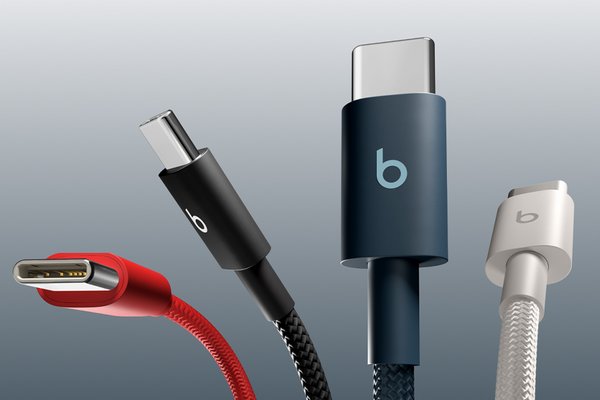&poi={$this.metadata.pointOfInterest.x},{$this.metadata.pointOfInterest.y},{$this.metadata.pointOfInterest.w},{$this.metadata.pointOfInterest.h}&scaleFit={($this.metadata.pointOfInterest.x>0)?$sfpoi:$sfcenter}&sm=aspect&aspect=3:2&sfcenter=center&sfpoi=poi&qlt=50&fmt=auto&noiser=0&fmt.jpeg.interlaced=true&fmt.jp2.qlt=40&)
By Steven Smith | Date published: July 2026
Cables connect the technology you use every day, but their names don’t always make their purpose clear. HDMI, USB-C, Ethernet, AUX and DisplayPort can look like a collection of letters until you know what each connection does.
This guide explains the common cable types used for charging, data, screens, TVs, internet connections and audio. We will also show you what to check before choosing a replacement or adapter.
Cable types at a glance
You'll want to check the type of ports availabile on the two devices you want to connect, and also consider whether you need data, video/audio transfer or charging to pick the most suitable cable.
| Cable type | Main use | Common devices |
|---|---|---|
USB-A | Charging and data | Computers, plugs and accessories |
USB-C | Charging, data and compatible displays | Phones, tablets and laptops |
Micro USB | Charging and data for some older devices | Cameras, speakers and headphones |
HDMI | Digital picture and sound | TVs, monitors, consoles and soundbars |
DisplayPort | Digital picture and sound | Computers, monitors and docking stations |
VGA | Analogue picture only | Older computers, monitors and projectors |
Ethernet | Wired network connection | Routers, computers, consoles and smart TVs |
3.5 mm AUX | Analogue audio | Headphones, speakers and car stereos |
Optical | Digital audio | TVs, soundbars and audio systems |
XLR | Balanced audio connection | Microphones, mixers and audio equipment |
Quick answer: what are the main types of cable?
USB cables usually handle charging and data, while HDMI and DisplayPort connect displays. Ethernet provides a wired network connection. AUX, optical and XLR cables are used for audio. Always check the ports on both devices and the required specification before you choose.
USB and Lightning cable types explained
USB cables are used to charge devices, transfer data and connect accessories. Some compatible USB connections can also carry video. Lightning cables are Apple-specific cables for charging and data transfer.
USB-A
USB-A is the familiar flat, rectangular connector found on many computers, charging plugs, TVs and games consoles. It can connect to another connector type at the opposite end, such as USB-C, micro-USB or Lightning.
USB-A is not reversible, so it only fits into its port one way.
USB-C
USB-C is a small, rounded connector that can be inserted either way up. It’s common on current phones, tablets, laptops, headphones and other devices.
Depending on the device and cable, USB-C may support:
- Charging
- Data transfer
- Connecting compatible displays
- Connecting accessories and docking stations
Not every USB-C cable offers the same functionalitu. If you need a USB-C charger or cable for a laptop, check the power requirement stated by the device manufacturer. For display connections, confirm that the device’s USB-C port supports video output.
Micro USB
Micro USB is a small connector with a tapered shape. It’s found on many older or lower-power devices, including cameras, speakers, headphones and e-readers.
A micro-USB cable is not the same as USB-C. The plugs have different shapes and cannot be used in each other’s ports.
Mini USB and USB-B
Mini USB is an older connector still seen on some cameras, sat navs and audio equipment. USB-B is the squarer connector commonly associated with printers and some specialist equipment.
Check the port carefully before ordering, as mini USB and micro USB can look similar in small product images.
Lightning
Lightning is a small reversible connector used by various older Apple devices and accessories. Some cables have Lightning at one end and either USB-A or USB-C at the other.
Check the charging port on your device before choosing between Lightning and USB-C, as different device generations may use different connectors.
USB adapters
An adapter can help connect two connector types, such as USB-A to USB-C. However, an adapter cannot automatically add a function that the original device or port does not support.
For example, a physical connection might fit while the required charging rate, data transfer or video feature remains unavailable. Check compatibility across the device, cable and adapter.
Cables for TVs, monitors and projectors
HDMI cables
HDMI cables carry digital picture and sound through one connection. It is widely used with TVs, monitors, soundbars, games consoles, streaming devices, computers and Blu-ray players.
Before choosing an HDMI cable, check:
- The number of HDMI ports available on both devices
- The picture resolution and refresh rate of your input and output devices
- Whether a particular HDMI feature is required
- The cable length needed for your setup
If you’re connecting a TV to a soundbar, check the labels beside the HDMI ports and follow the product instructions. Some audio features require specific compatible ports on both devices.
DisplayPort cables
DisplayPort is used mainly with desktop computers, laptops, monitors and docking stations. Like HDMI, it can carry digital picture and sound.
The full-size connector is roughly rectangular, while Mini DisplayPort is smaller. They’re not the same physical size, so check which version your device uses.
If your computer and monitor provide both HDMI and DisplayPort, consult their specifications to see which connection supports the resolution and refresh rate you need.
- Read our laptop and computer buying guide
VGA cables
VGA is an older analogue video connection. Its plug is usually blue and has 15 pins, with screws on either side to hold it in place.
VGA carries picture but not sound. If audio is required, you will need a separate audio connection. VGA is most likely to be found on older computers, monitors and projectors.
DVI cables
DVI is another computer display connection found on some older monitors and desktop computers. Different DVI connector formats exist, so compare the port and cable carefully before buying.
Depending on the connection, DVI is mainly used for picture. Do not assume it will carry audio.
SCART connections and HDMI adapters
SCART is a large connector found on older TVs, DVD players, video recorders and games equipment. Most newer TVs use HDMI instead.
A SCART to HDMI setup usually needs an active converter that processes the signal, not simply a cable with different connectors at each end. The direction of conversion matters too. Check whether the product converts SCART to HDMI or HDMI to SCART and follow the converter instructions.
Ethernet cables for wired internet
An Ethernet cable connects compatible devices to a local network through a router, network switch or wall port. It can be useful for desktop computers, consoles and smart TVs when you want a direct wired connection.
Ethernet connectors are wider than telephone connectors and usually have a small plastic clip. The category is normally printed along the cable.
Cat 5e and Cat 6 Ethernet cables
Cat 5e and Cat 6 are categories of Ethernet cable. Both are used in home networks, but the performance available depends on the complete setup, including the router, device ports, cable length and network service.
A Cat 6 cable may support higher network performance in suitable conditions, but replacing the cable alone will not increase the speed provided by your broadband service. Choose a category that meets the requirements of your equipment and network.
Do not confuse an Ethernet cable with a telephone or modem lead. They can look similar, but the connectors and uses are different.
Suggested internal link placement: Link our beginner’s guide to mesh Wi-Fi after the explanation of wired connections.
Audio cable types explained
AUX and 3.5 mm cables
A 3.5 mm AUX cable carries analogue audio. It is commonly used with headphones, speakers, car stereos, computers and older phones or tablets.
Some 3.5 mm plugs include extra contact points for a microphone or controls. Check whether you need audio only or a combined headset connection.
Optical cables
An optical cable carries digital audio and is commonly used between TVs, soundbars, receivers and other home audio equipment. The matching port may be labelled “optical”, “digital audio out” or “TOSLINK”.
Remove any protective caps before use and line up the connector carefully. Do not force or sharply bend an optical cable.
RCA cables
RCA connectors are round and often colour-coded. Red and white connectors are commonly used for right and left analogue audio. A yellow connector is traditionally associated with composite video.
Check the labels beside the ports, rather than re
XLR cables
XLR cables are commonly used with microphones, mixers, audio interfaces and powered speakers. A typical XLR connector has three pins and a locking mechanism.
An XLR cable is designed for compatible audio equipment. Check the input and output connections on both products before choosing one.
How to identify the cable you need
Use this checklist before you buy a cable or adapter:
- Decide what the connection must do. Is it for charging, data, picture, sound or internet access?
- Check the port on both devices. Look for labels such as HDMI, USB, DisplayPort or optical.
- Compare the connector shape. Pay attention to size, orientation and pin layout.
- Read the device instructions. Look for supported charging power, picture settings or connection standards.
- Check both ends of the cable. They may use different connector types.
- Choose a practical length. Allow enough room without leaving excess cable across a walkway.
- Check adapter direction. Some video converters work in only one direction.
- Do not force the connector. If it does not fit easily, stop and check the orientation and connector type.
If the original cable is available, check for printed details or a model number. You can also take a clear photo of the device port to compare while shopping.
Using and storing cables safely
Check cables, plugs and connectors regularly. Stop using a cable if it is frayed, crushed, split, unusually hot or has exposed internal wires. Replace damaged charging and power leads rather than covering damage with tape.
Keep leads away from wet areas, sources of heat and places where they may be trapped under furniture. Route longer cables so they do not create a trip hazard.
For mains-powered equipment, use the cable or power supply specified for that product. Never attempt fixed household wiring based on a general cable guide. Contact a registered electrician if electrical installation or repair work is required.
FAQs about cable types
What are the main types of computer cable?
Common computer cables include USB for charging, data and accessories, HDMI or DisplayPort for monitors, Ethernet for a wired network connection and 3.5 mm AUX for analogue audio. Older computers may also use VGA or DVI for a display. There is no single list that applies to every computer, so check the available ports and the device specification. You may need a cable with different connectors at each end, or a compatible adapter.
How do I know which cable I need?
Start with the task the cable needs to perform, such as charging a phone, connecting a monitor or linking a computer to a router. Check the ports on both devices and look for labels or symbols. Then consult the device instructions for any required power or connection specification. Do not choose by connector shape alone, particularly with USB-C. Cables that look identical may support different charging, data or display capabilities.
How do I know if I have USB-A or USB-C?
USB-A is a larger, flat rectangular connector that only plugs in one way. USB-C is smaller, has rounded ends and can usually be inserted either way up. Check both the device port and the cable connector, as a cable can have USB-A at one end and USB-C at the other. If you are choosing a charger, also check the device’s power requirements because the connector type does not determine charging performance on its own.
What is the difference between USB-C and micro USB?
USB-C has a rounded, symmetrical connector that fits either way up. Micro USB has a smaller, tapered connector that fits in one orientation. The two are not physically interchangeable. USB-C can support charging, data and other functions on compatible equipment, while micro USB is commonly found on older cameras, speakers and accessories. Always check the precise device port before choosing a replacement because small connectors can look similar in photographs.
What is an Ethernet cable used for?
An Ethernet cable creates a wired network connection between compatible equipment, such as a router and a computer, games console or smart TV. Cat 5e and Cat 6 are common Ethernet cable categories. The connection available depends on the whole network, including the device ports, router, cable and broadband service. An Ethernet cable can provide a direct network link, but changing the cable will not increase the speed supplied by your internet provider.
Do HDMI cables carry sound as well as picture?
HDMI is designed to carry digital picture and sound through the same connection. It is commonly used between TVs, monitors, games consoles, streaming devices and soundbars. The features available depend on the HDMI ports and specifications supported by both connected products, as well as the cable. If you are setting up a TV and soundbar, check the labels beside their ports and follow both manufacturers’ instructions to select the appropriate compatible connection.
Can I connect an older device to a newer TV?
It may be possible, but the equipment could need an active converter rather than a simple adapter cable. For example, converting a SCART or VGA signal for an HDMI input can require powered hardware that processes the signal. Conversion direction is important, so a device labelled HDMI to SCART may not work for a SCART source and HDMI TV. Check the output on the older device, the input on the TV and the converter’s stated direction.
Can one USB-C cable charge every USB-C device?
Not necessarily. USB-C describes the connector’s shape, but USB-C devices and cables can support different charging power and functions. A cable suitable for charging a phone may not meet a laptop’s power requirement. The charger also needs to provide a compatible output. Check the device manufacturer’s charging specification, the charger output and the cable’s supported power before use. If a supplied cable or power adapter is specified, follow the product instructions.